
Introduction
Manage Rugix-powered devices through a local browser interface.
Preview
You're viewing the Next docs — a rolling preview of in-development changes. The current release docs may differ.Rugix Admin is a browser-based management interface for systems running Rugix Ctrl. It provides direct access to the lifecycle operations of one device during development, demonstrations, diagnostics, and field service.
Rugix Admin is not a fleet manager. It does not connect devices to a cloud backend, schedule staged rollouts, or retain fleet-wide history. Use it alongside the build system and fleet-management solution that fit your product.
System Updates and State
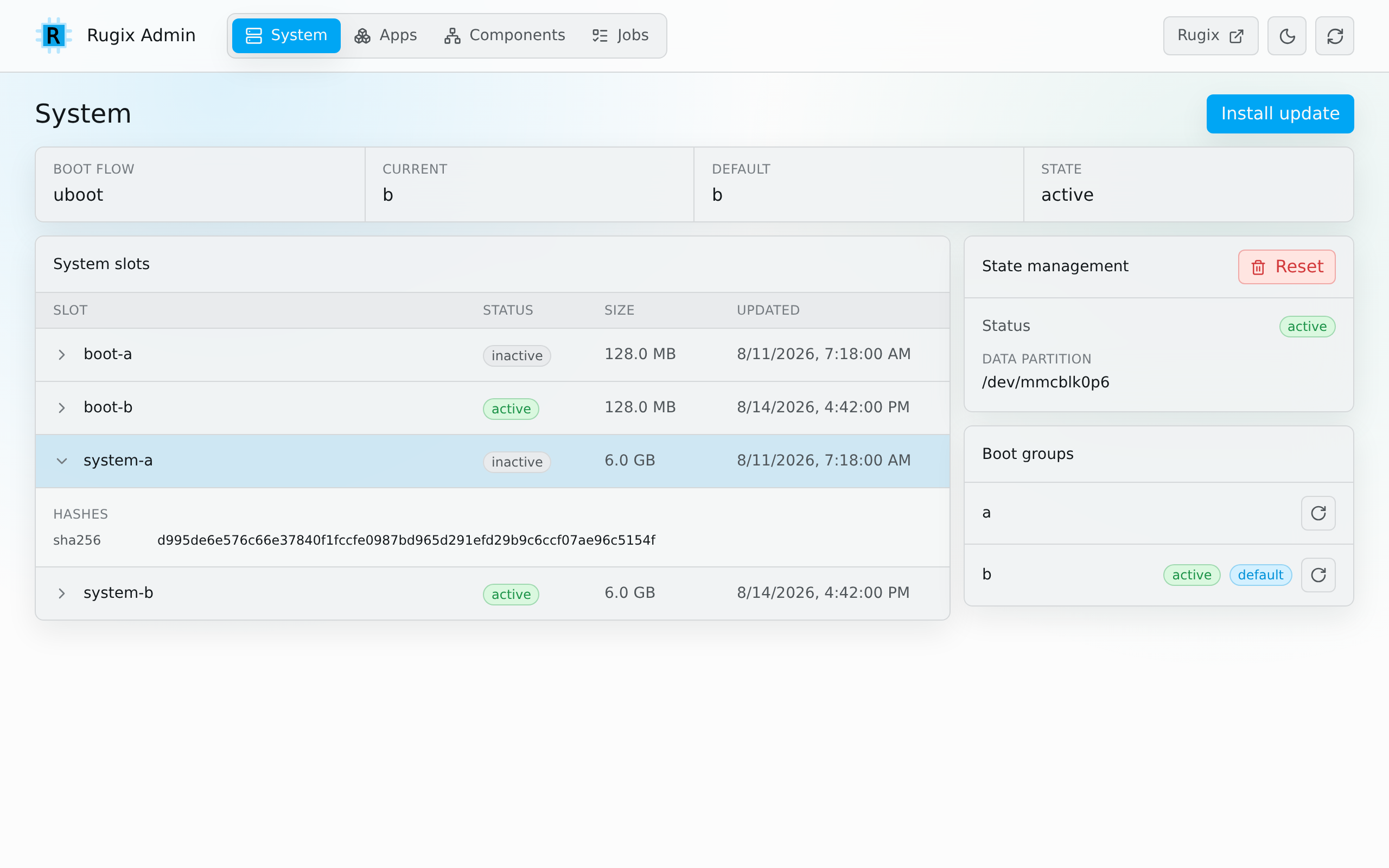
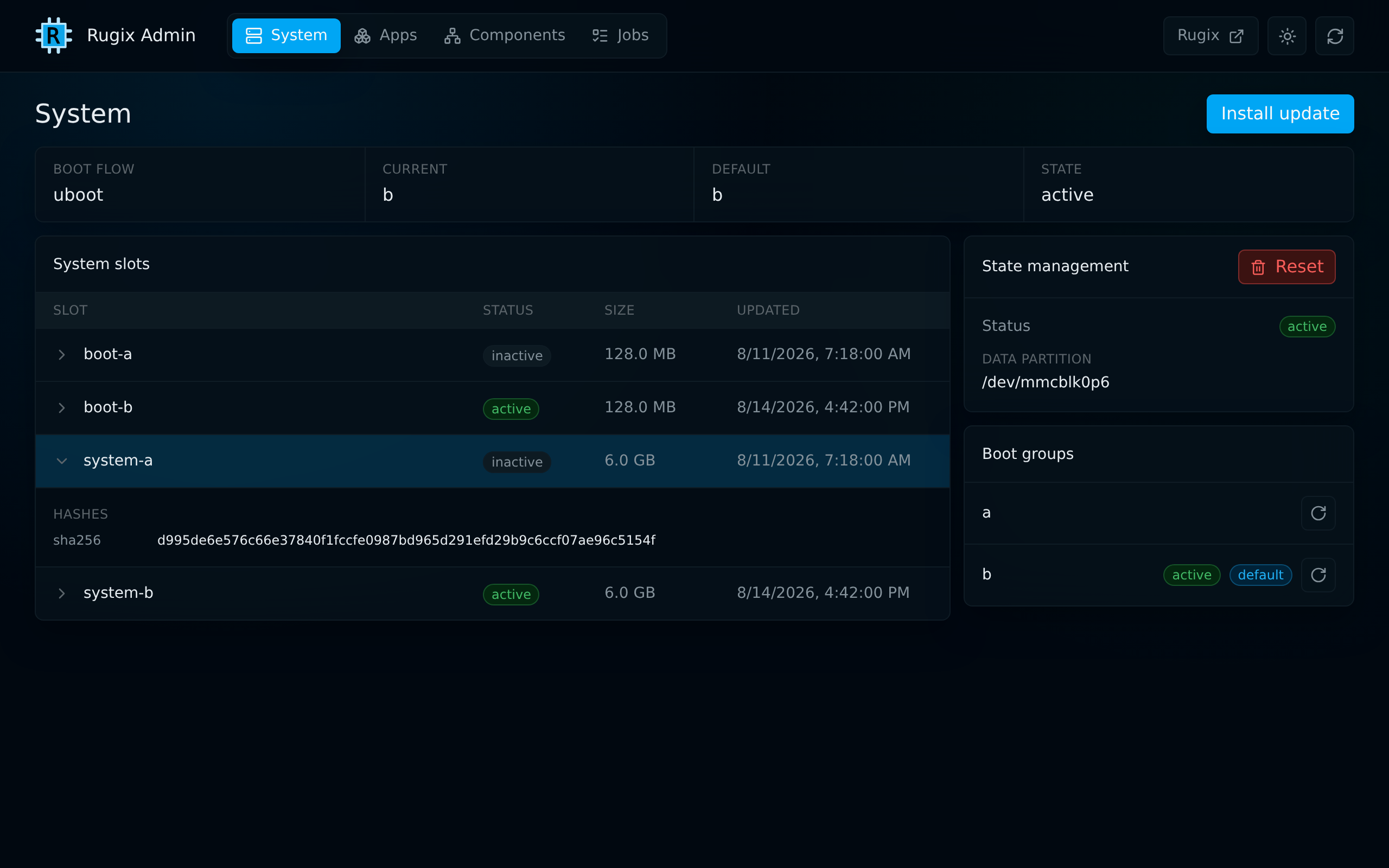
The System view shows the active and default boot groups, system slots, stored hashes, and persistent-state status. From here, an operator can install a system update, commit the active system, reboot into a selected boot group, or reset persistent state. The available actions depend on the Rugix Ctrl daemon policy.
https://device.local/#/system
Application Workloads
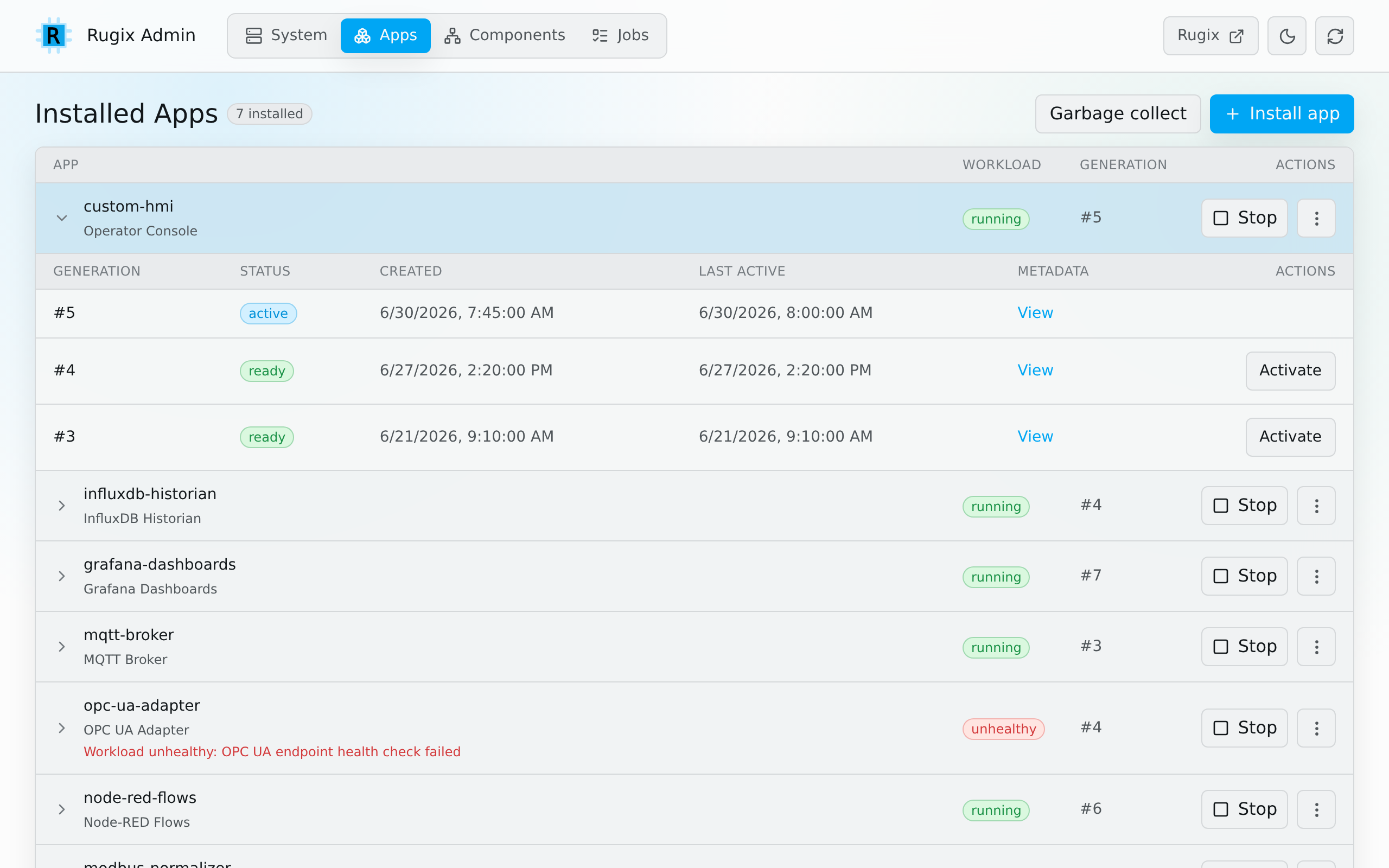
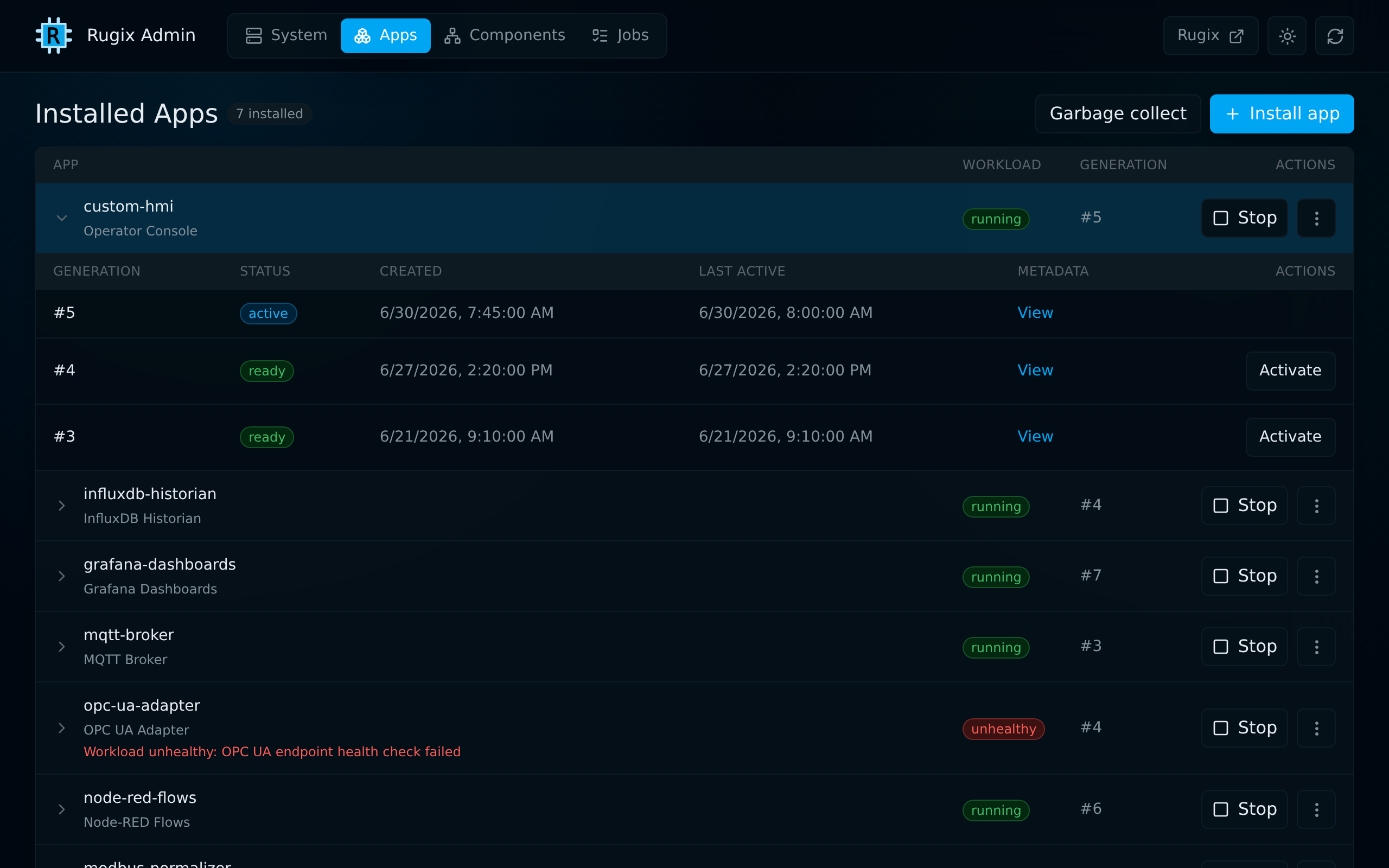
The Apps view shows installed applications, their runtime and lifecycle status, and their deployment generations. Operators can install application bundles, change lifecycle state, roll back to a previous generation, remove applications, and clean up unused generations when the daemon policy permits those actions.
https://device.local/#/apps
Component Compatibility
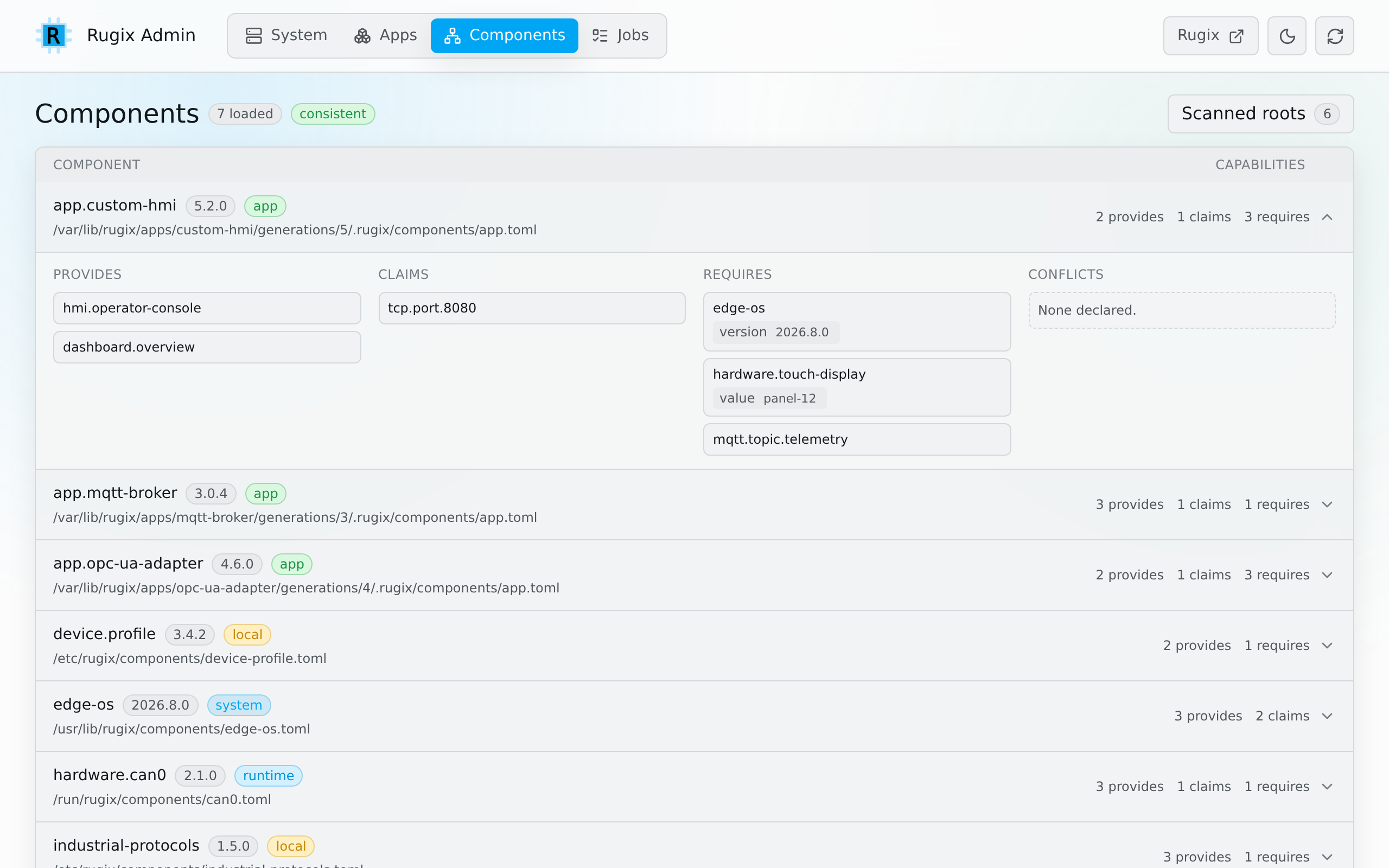
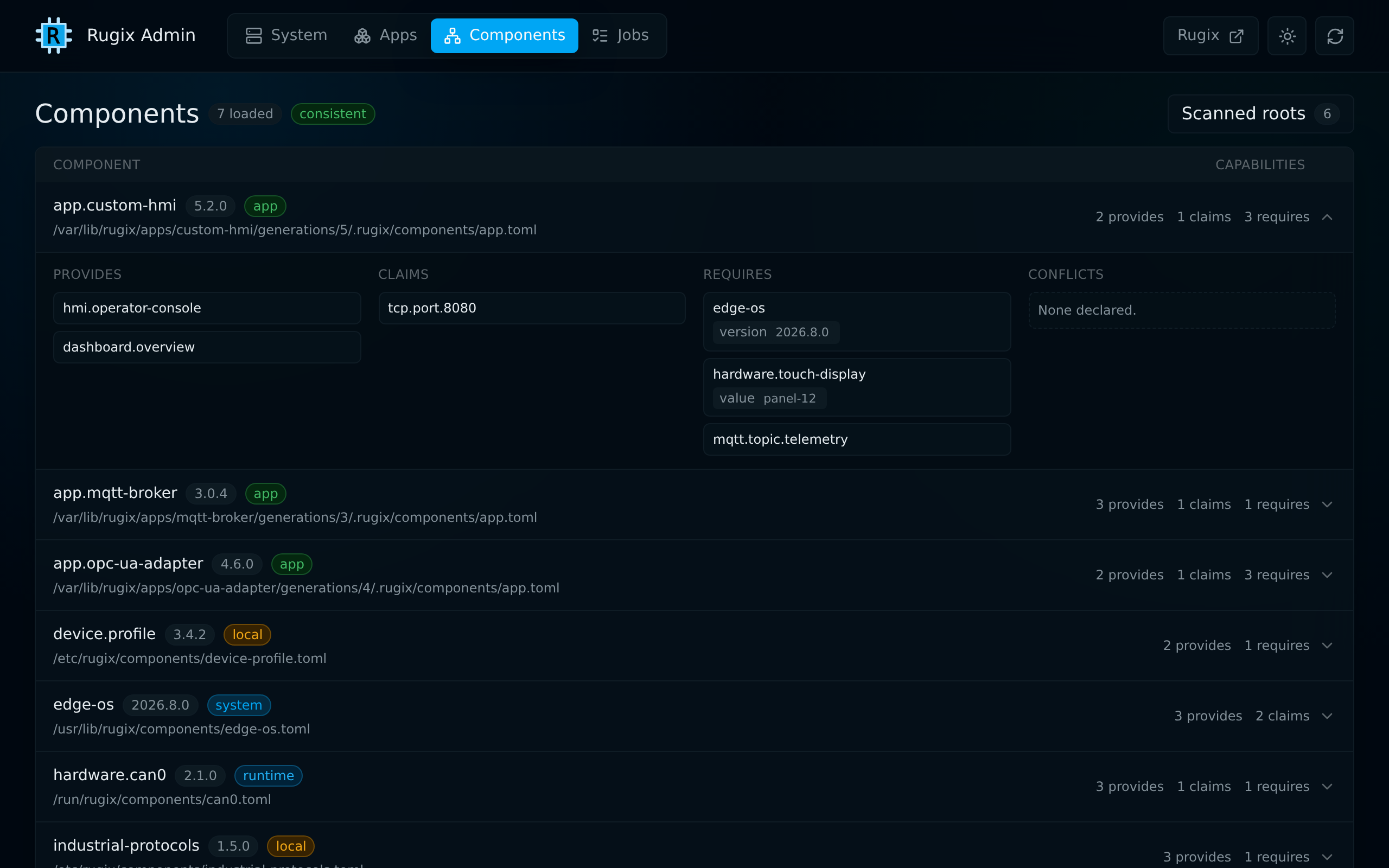
The Components view explains how the hardware, base operating system, runtimes, and applications fit together. It lists the capabilities each component provides, claims, and requires, and reports consistency problems without hiding the component metadata that caused them.
https://device.local/#/components
Architecture and Scope
Rugix Admin is a self-contained service that embeds its frontend and invokes
rugix-ctrl as an unprivileged user. Rugix Ctrl forwards supported operations
to its privileged daemon over a group-restricted Unix socket. The daemon checks
each request against its effective policy before performing privileged work.
This separation limits what the web service can ask the device to do, but it does not authenticate browser clients or encrypt HTTP traffic. Review the Secure Deployment before making the service reachable over a network.
Next Steps
- Install Rugix Admin.
- Configure Rugix Admin.
- Review the secure deployment guidance.
- Consult the HTTP API reference only if you need to inspect the unstable interface used by the frontend.